
Interface
You current organization is displayed on the top right corner of the interface:
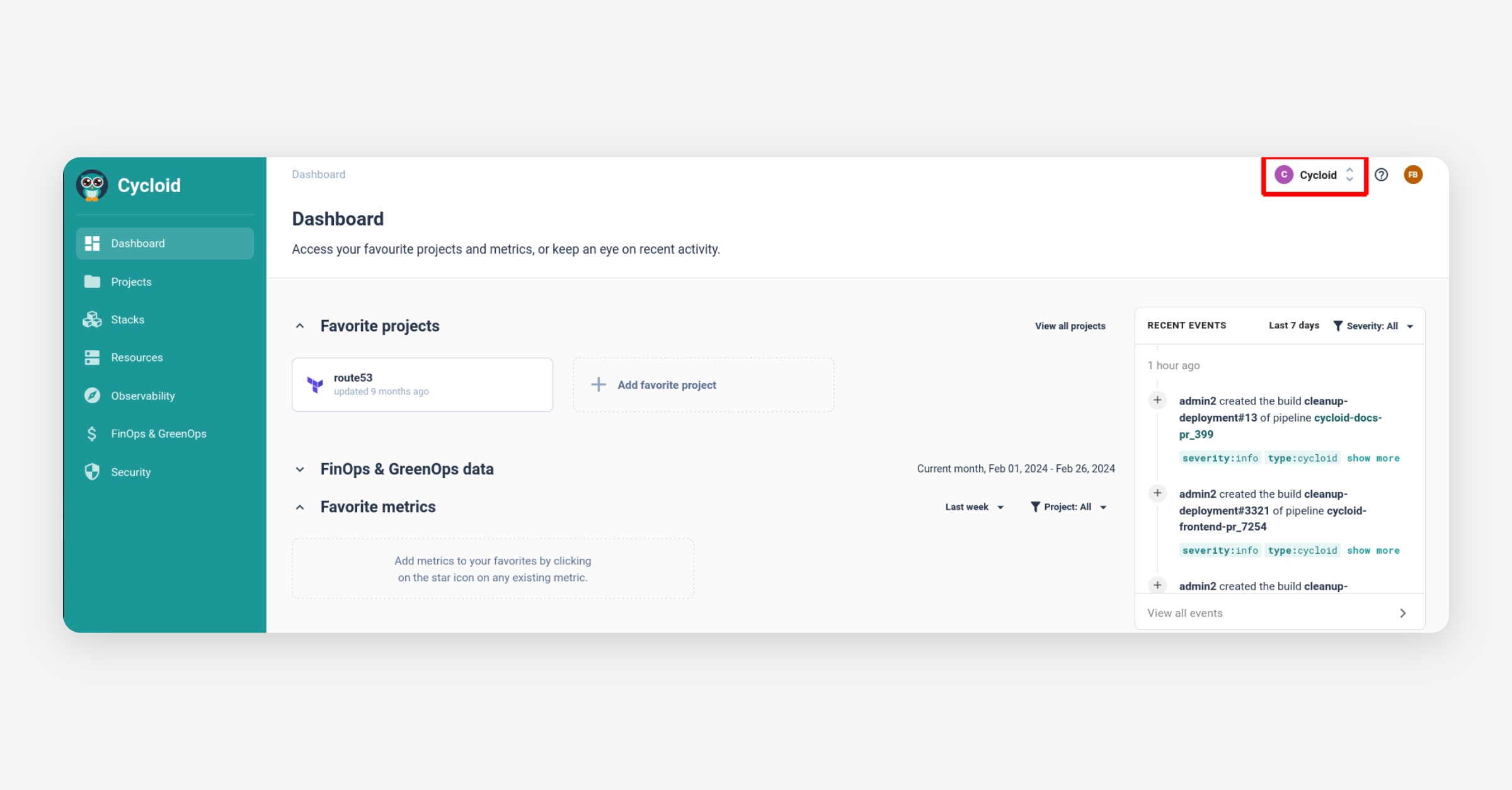
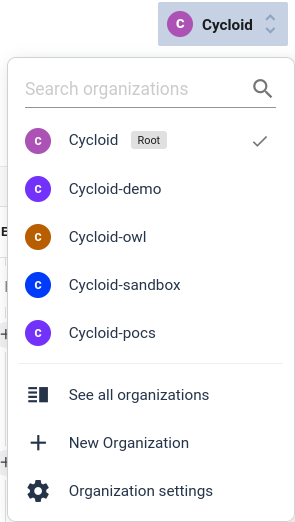
If you click on your current org, you will be able to:
Switch quickly across all the orgs that you are member to
Go to the all organization panels
Create a new org
Change current organization settings
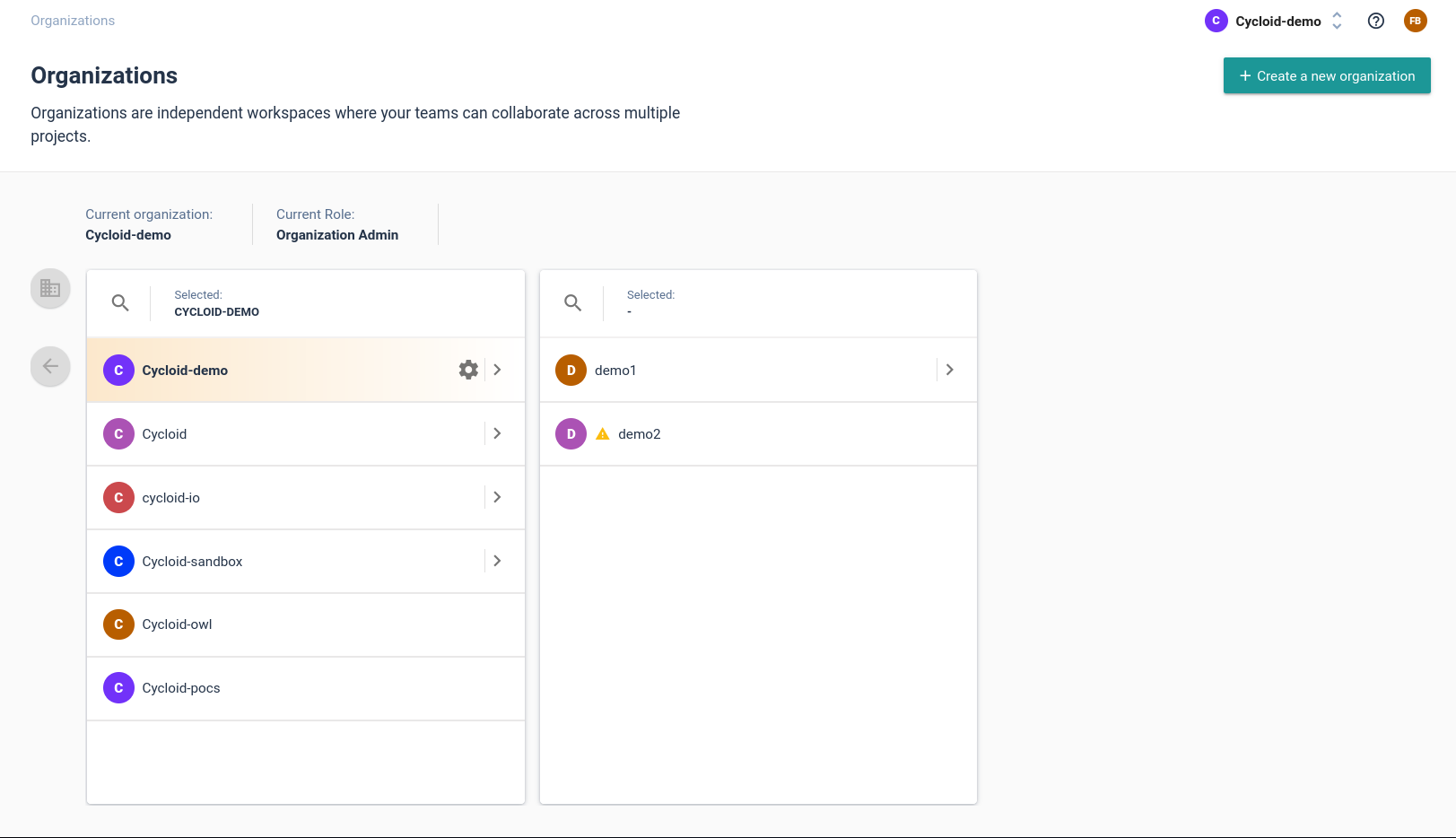
In the all organization panels you will be able to list and find all organizations you have access to.
Organization settings
Inside the Organization settings, you have different tabs.
Settings
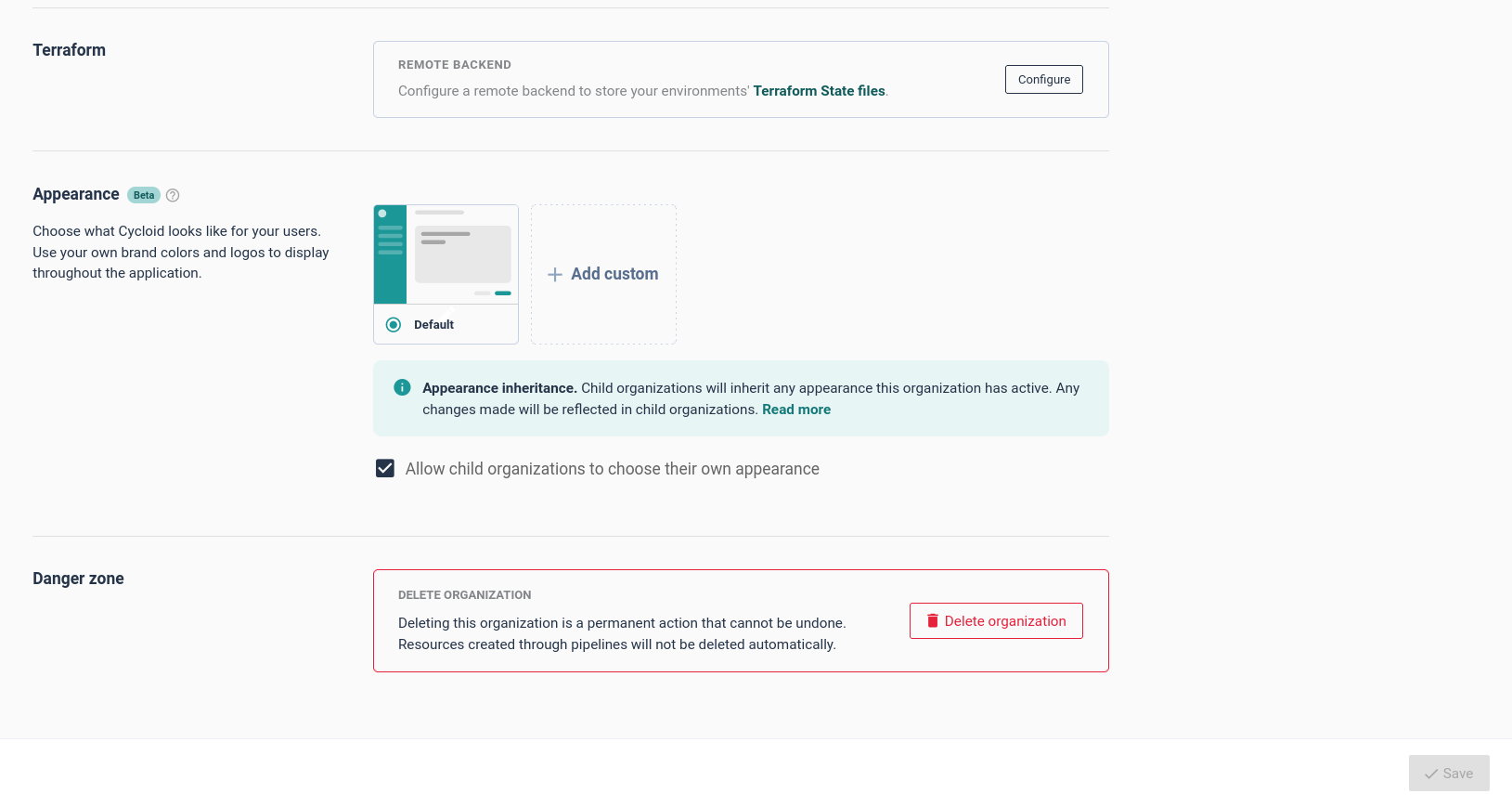
Metadata
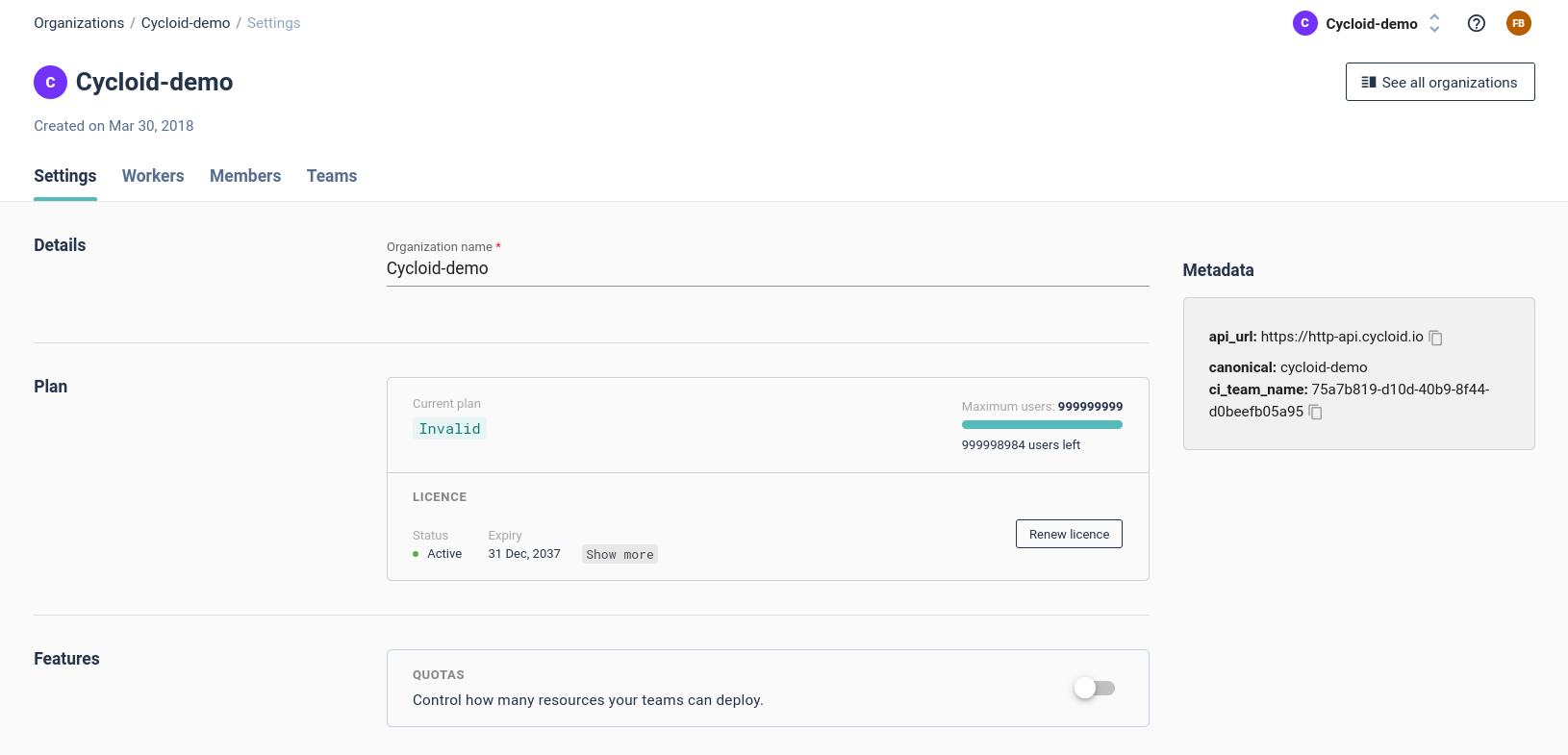
You can see on the right a Metadata information rectangle that contains:
api_url: The API URL of cycloid (useful when on premise installations.)canonical: The current organization canonical, this is a unique reference to the current organization. This is useful for API calls and scripting.ci_team_name: this is the current team uuid inside concourse ci, our pipeline engine.
Details
Here you can change the Organization name.
Plan
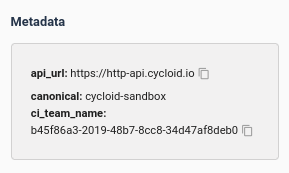
This widget will display the number of available seats and your current licence status for cycloid.
Features
You can enable/disable some cycloid features here.

Terraform
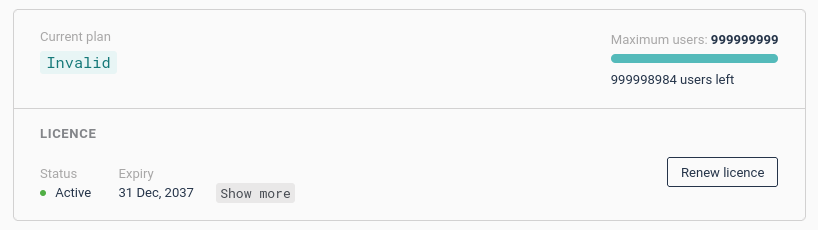
This is where you can configure a terraform backend at org level for the cycloid inventory.

Appearance
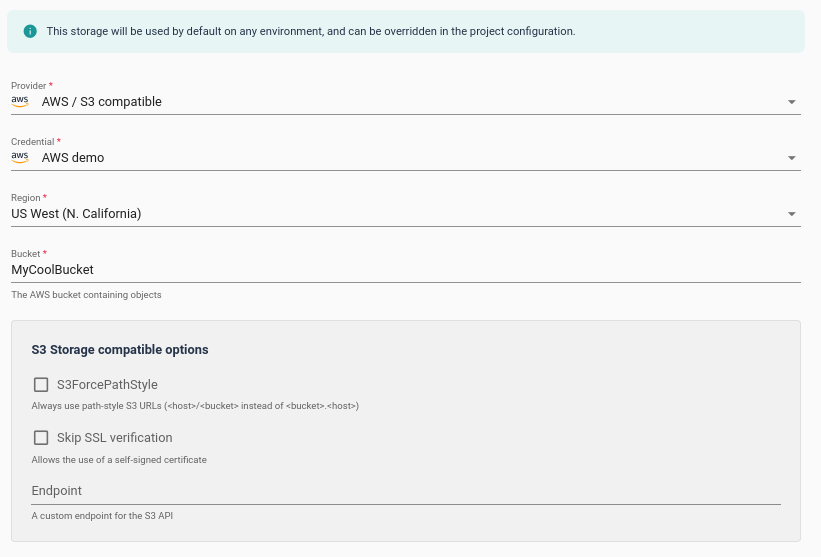
This section allows you to change the theming of the current org.

tip
Creating different themes for your different orgs can help you differentiate more easily the org you are currently using
Danger Zone
This is where you can delete an organization.
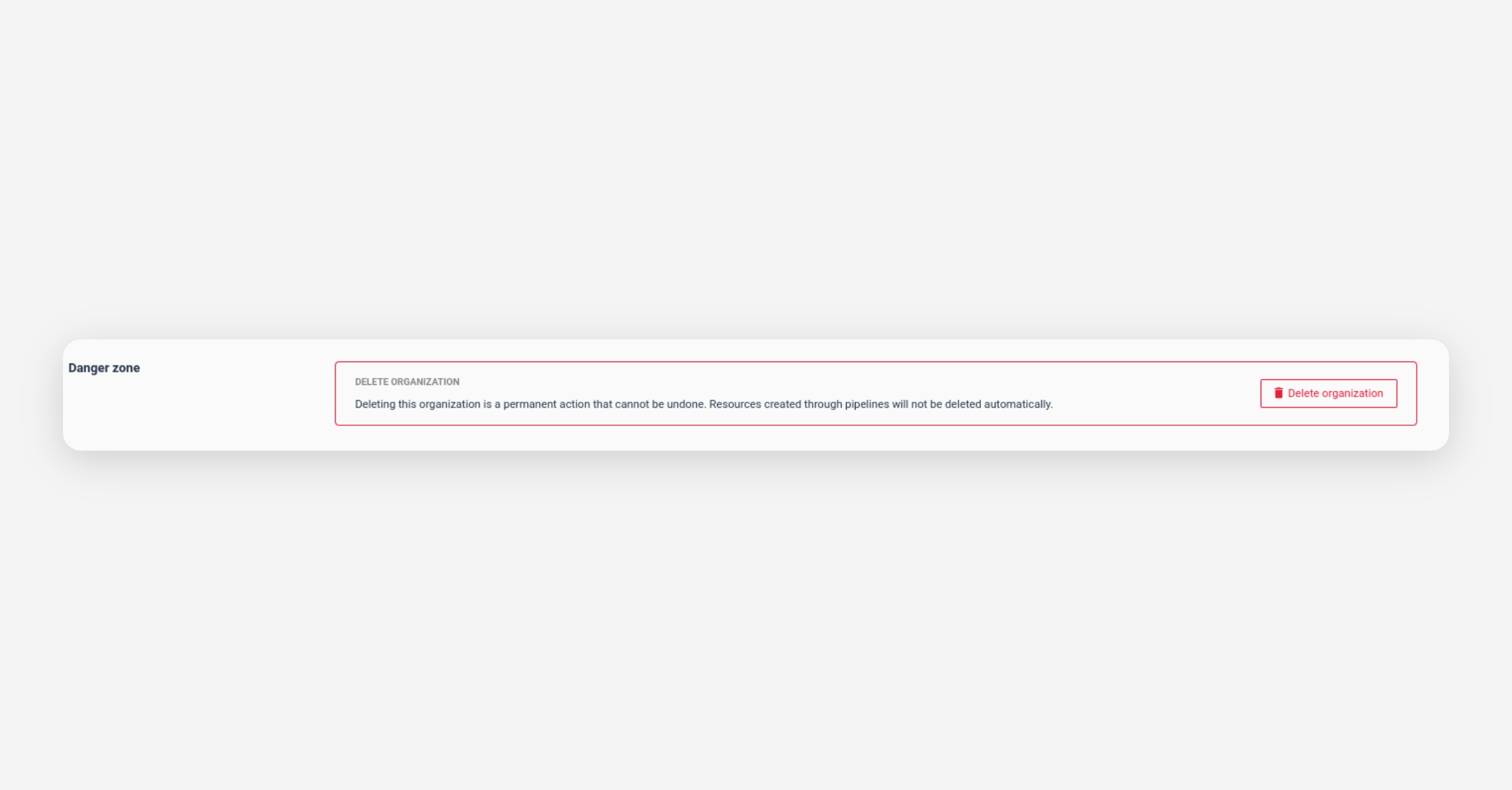
danger
Resources created in an org won't be deleted automatically.
Please, ensure all your terraform resources are effectively deleted before deleting an organization.
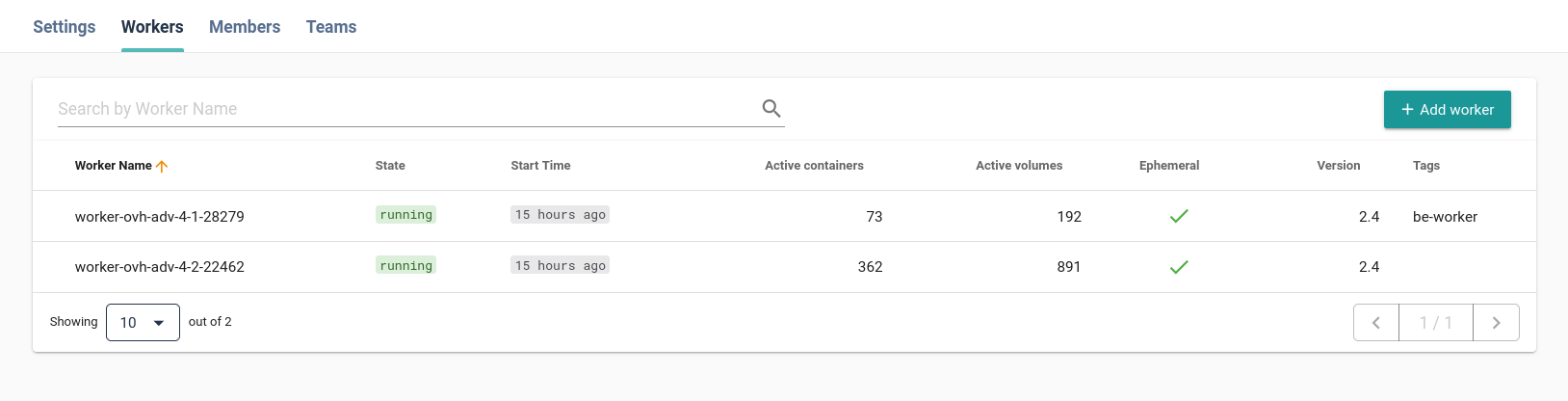
Workers
Here you can manage your org's workers.
see workers sections for more information.
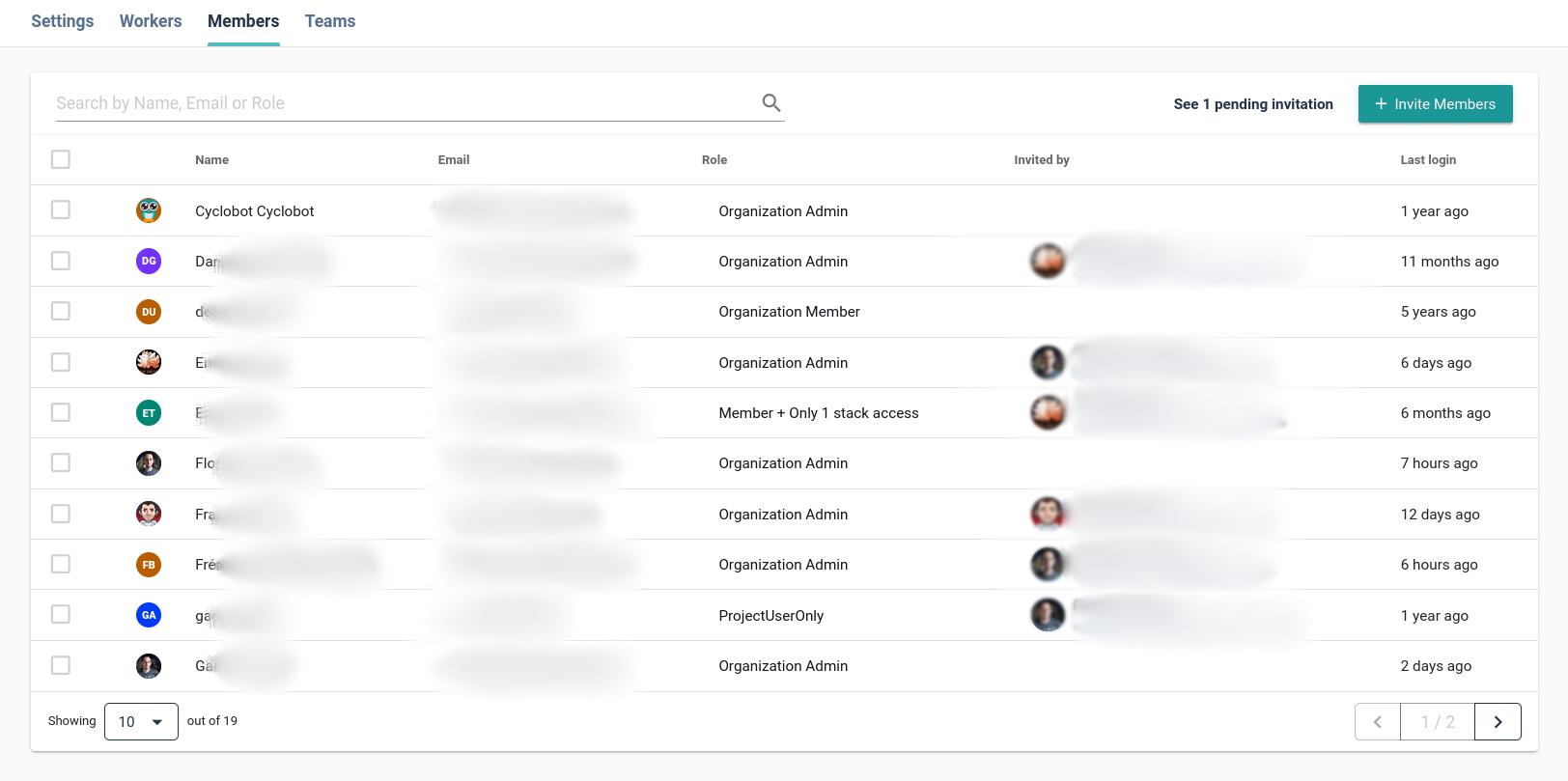
Members
Here you can manage the member of your org.
You can invite people using their email address and affect a role to them.
You can also select and delete org members.
Teams
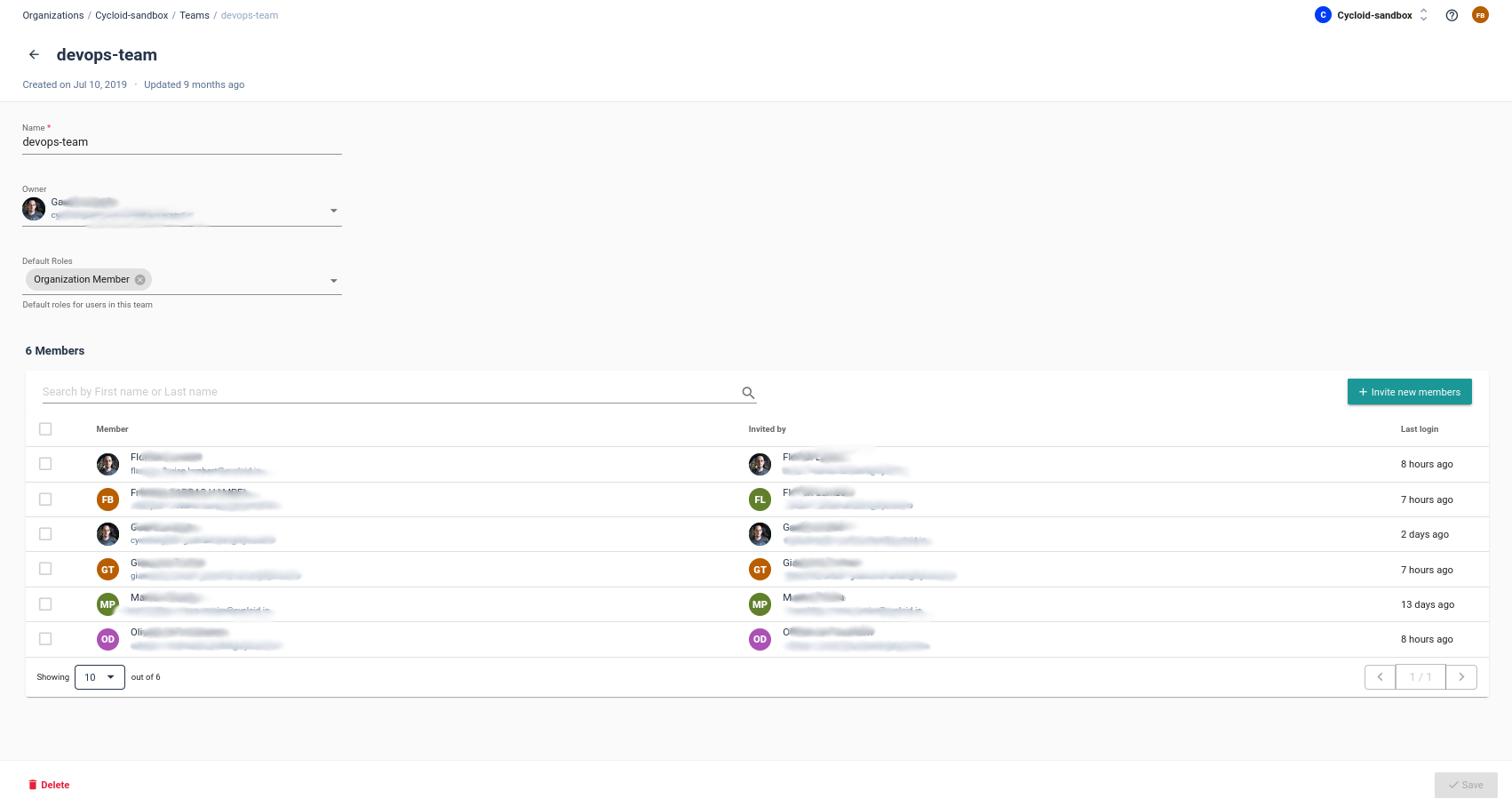
Teams allow you to group users. Each team has a default role assigned to.
You can create and delete teams here.
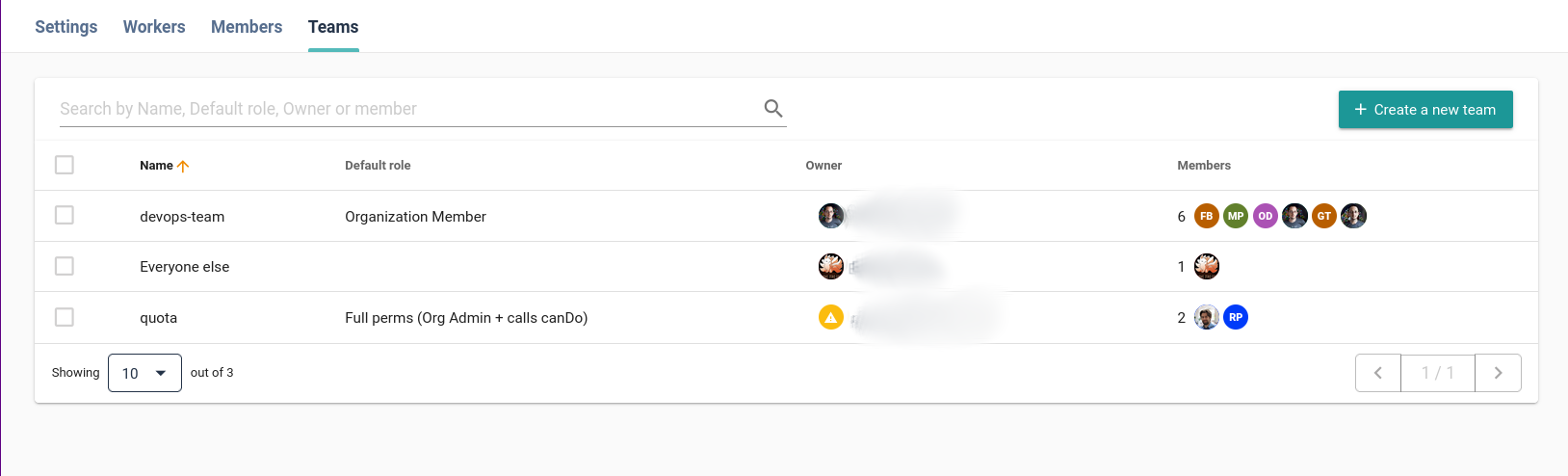
To affect a member to a team. Click on the team and you will access the team panel.
Was this helpful?